> ## Documentation Index
> Fetch the complete documentation index at: https://docs.costcare.ai/llms.txt
> Use this file to discover all available pages before exploring further.
# How to Log In
> Learn how to log in to your existing CostCare AI account and access your workspace.
Log in to CostCare AI to access your workspace, manage AI agents, connect channels, and continue working with sales conversations.
Use this page if you already have a CostCare AI account and want to enter your existing workspace.
***
## Log in to CostCare AI
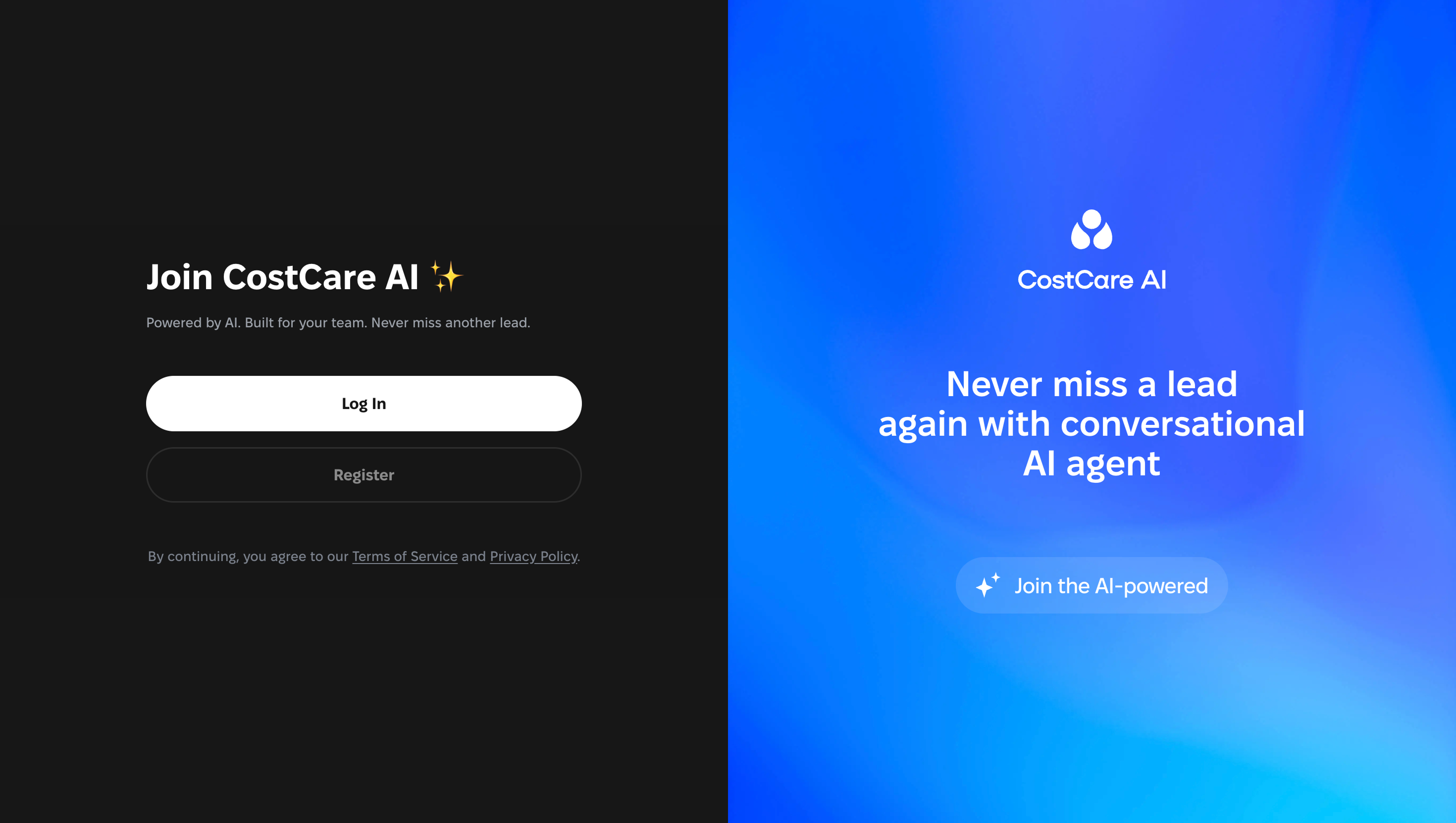
To log in to your CostCare AI account:
Open the CostCare AI start page and click **Log In**.
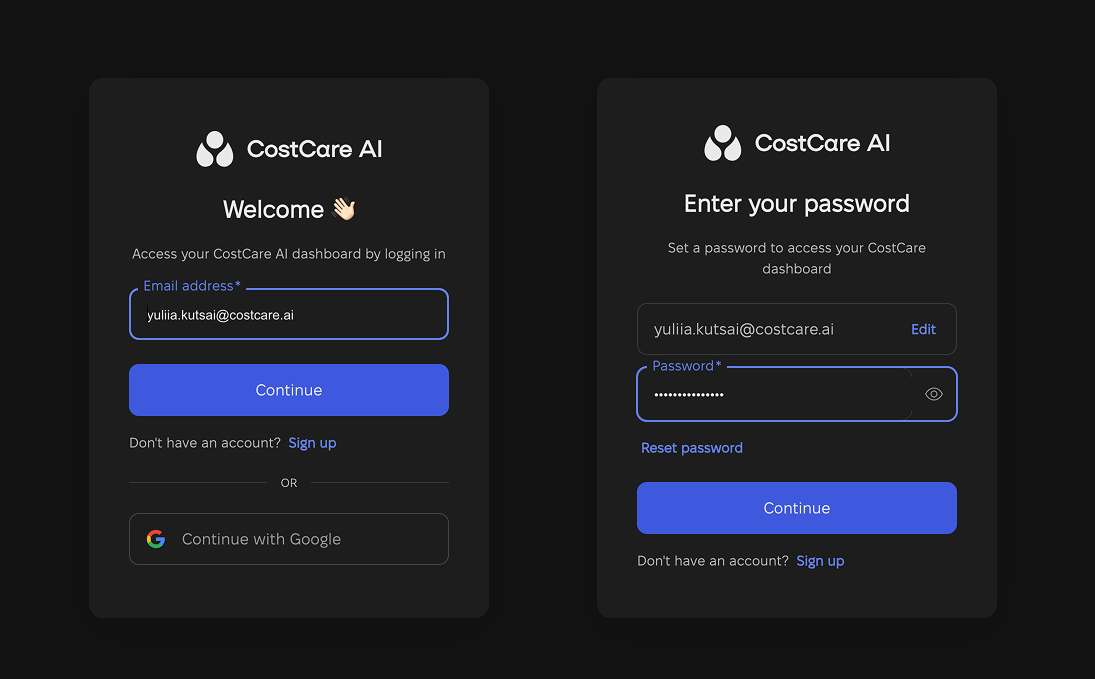
Enter the email address connected to your CostCare AI account.
Click **Continue** to proceed to the password step.
Enter your password and click **Continue** to access your CostCare AI dashboard.
 ***
## Enter your email address
After clicking **Log In**, you'll see the login form.
Enter the email address connected to your CostCare AI workspace and click **Continue**.
***
## Enter your email address
After clicking **Log In**, you'll see the login form.
Enter the email address connected to your CostCare AI workspace and click **Continue**.
 Make sure you use the same email address that was used to create or access your CostCare AI workspace.
***
## Log In vs Register
Use **Log In** if you already have a CostCare AI account or your team has already created a workspace for you.
Use **Register** only if you need to create a new CostCare AI account.
If you already have an account, choose **Log In**. Choosing **Register** may create a new account instead of opening your existing workspace.
***
## When to use Log In
Use **Log In** when:
* you already have a CostCare AI account;
* your team has invited you to an existing workspace;
* you have used CostCare AI before;
* you want to access existing AI agents, channels, or conversations;
* you want to continue working in your current workspace.
***
## When to use Register
Use **Register** only when:
* you are creating a new CostCare AI account;
* your company does not have a workspace yet;
* you are setting up CostCare AI for the first time.
If you are not sure whether your company already has a workspace, check with your team admin before registering.
***
## If you cannot log in
If you cannot access your account:
* check that your email address is correct;
* make sure you are using **Log In**, not **Register**;
* use **Reset password** if you forgot your password;
* ask your workspace admin to confirm your access;
* contact the CostCare AI team if the issue continues.
Contact the CostCare AI team if you need help accessing the right account.
Make sure you use the same email address that was used to create or access your CostCare AI workspace.
***
## Log In vs Register
Use **Log In** if you already have a CostCare AI account or your team has already created a workspace for you.
Use **Register** only if you need to create a new CostCare AI account.
If you already have an account, choose **Log In**. Choosing **Register** may create a new account instead of opening your existing workspace.
***
## When to use Log In
Use **Log In** when:
* you already have a CostCare AI account;
* your team has invited you to an existing workspace;
* you have used CostCare AI before;
* you want to access existing AI agents, channels, or conversations;
* you want to continue working in your current workspace.
***
## When to use Register
Use **Register** only when:
* you are creating a new CostCare AI account;
* your company does not have a workspace yet;
* you are setting up CostCare AI for the first time.
If you are not sure whether your company already has a workspace, check with your team admin before registering.
***
## If you cannot log in
If you cannot access your account:
* check that your email address is correct;
* make sure you are using **Log In**, not **Register**;
* use **Reset password** if you forgot your password;
* ask your workspace admin to confirm your access;
* contact the CostCare AI team if the issue continues.
Contact the CostCare AI team if you need help accessing the right account.