> ## Documentation Index
> Fetch the complete documentation index at: https://docs.costcare.ai/llms.txt
> Use this file to discover all available pages before exploring further.
# Knowledge Base
> Learn how to add company materials to the Knowledge Base so your CostCare AI agents can use them during sales conversations.
The **Knowledge Base** is where you can upload company materials that your AI agents can use during conversations.
Knowledge Base is available to all CostCare AI users.
***
## What the Knowledge Base is for
CostCare AI agents can use files from the Knowledge Base during conversations with customers.
This helps your AI agents:
* answer customer questions more accurately;
* provide more complete product or service information;
* reduce generic or inaccurate responses;
* follow your company's sales logic and tone of voice;
* use up-to-date materials during conversations;
* rely less on manual agent configuration.
You can use the Knowledge Base to centralize the information your AI agents need for sales conversations.
***
## Where to find the Knowledge Base
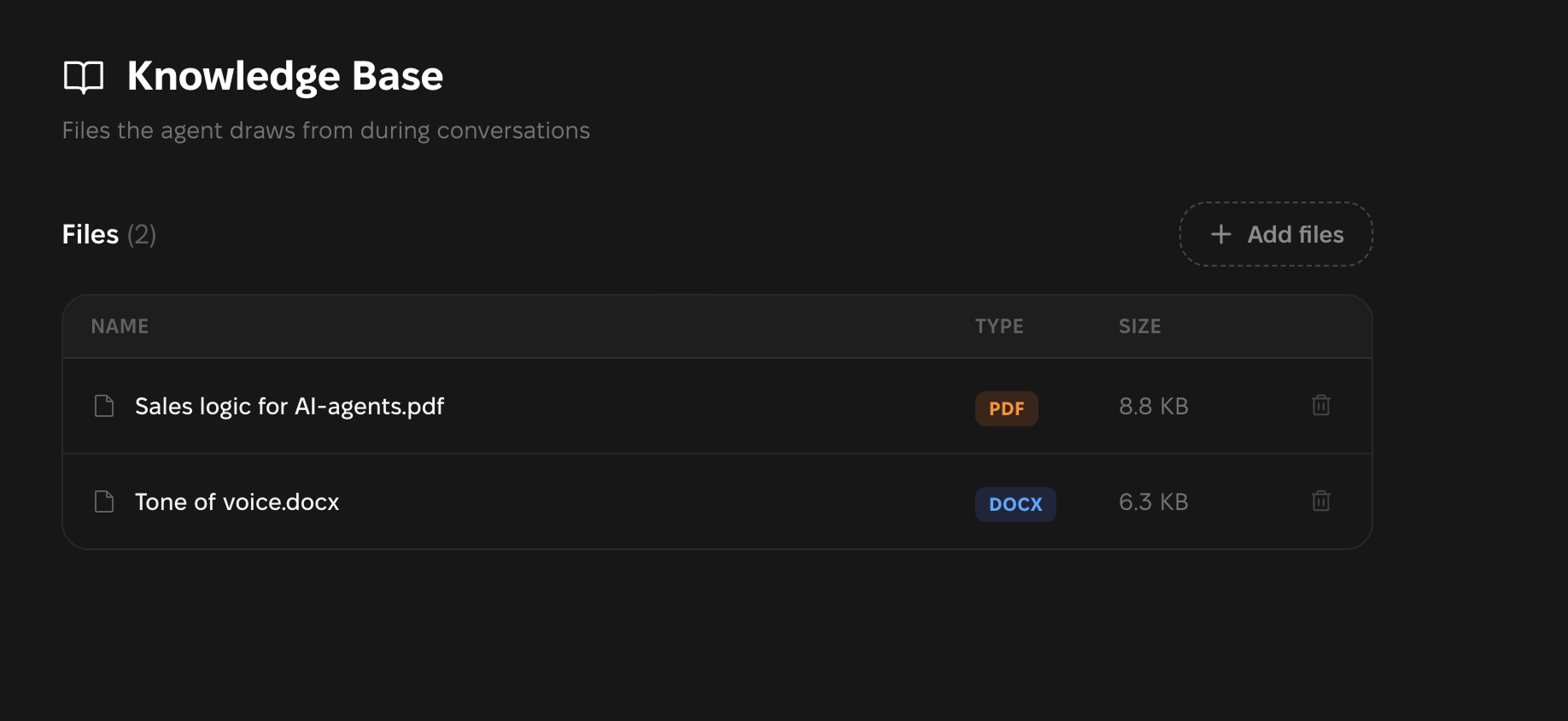
You can find the Knowledge Base in the left sidebar of your CostCare AI workspace.
To open it, go to: **Left sidebar → Knowledge Base**
 ***
## How to add files
To add files to the Knowledge Base:
In the left sidebar, open **Knowledge Base**.
Click **Add files** or drag files into the upload area.
Select the files you want your AI agents to use during conversations.
After uploading, your AI agent can immediately use the information from these files in responses.
***
## Supported file formats
The Knowledge Base supports the following file formats:
PDF, DOCX, TXT, MD
XLSX, CSV, PPTX
The maximum file size is **10 MB per file**.
There is no limit on the number of documents you can upload.
Files should contain text-based information. If important content is stored only as images or screenshots inside a document, the AI agent may not be able to read it correctly.
***
## What files to add
You can upload any materials that help your AI agents handle sales conversations better.
For example:
* FAQ;
* price lists and pricing rules;
* product descriptions;
* service descriptions;
* tone of voice guidelines;
* sales logic;
* sales funnel materials;
* sales scripts;
* internal instructions;
* onboarding materials for sales teams.
Good Knowledge Base files help your AI agents understand what to say, how to say it, and when to move the customer forward in the sales process.
***
## How to add files
To add files to the Knowledge Base:
In the left sidebar, open **Knowledge Base**.
Click **Add files** or drag files into the upload area.
Select the files you want your AI agents to use during conversations.
After uploading, your AI agent can immediately use the information from these files in responses.
***
## Supported file formats
The Knowledge Base supports the following file formats:
PDF, DOCX, TXT, MD
XLSX, CSV, PPTX
The maximum file size is **10 MB per file**.
There is no limit on the number of documents you can upload.
Files should contain text-based information. If important content is stored only as images or screenshots inside a document, the AI agent may not be able to read it correctly.
***
## What files to add
You can upload any materials that help your AI agents handle sales conversations better.
For example:
* FAQ;
* price lists and pricing rules;
* product descriptions;
* service descriptions;
* tone of voice guidelines;
* sales logic;
* sales funnel materials;
* sales scripts;
* internal instructions;
* onboarding materials for sales teams.
Good Knowledge Base files help your AI agents understand what to say, how to say it, and when to move the customer forward in the sales process.
 ***
## How to update files
Currently, files cannot be edited directly in CostCare AI.
You also cannot rename a file after uploading it to the platform. If a document is no longer relevant or contains outdated information, you need to delete the old file first and then upload the updated version.
To update a file:
Make changes to the document outside CostCare AI and save the updated version with a clear file name.
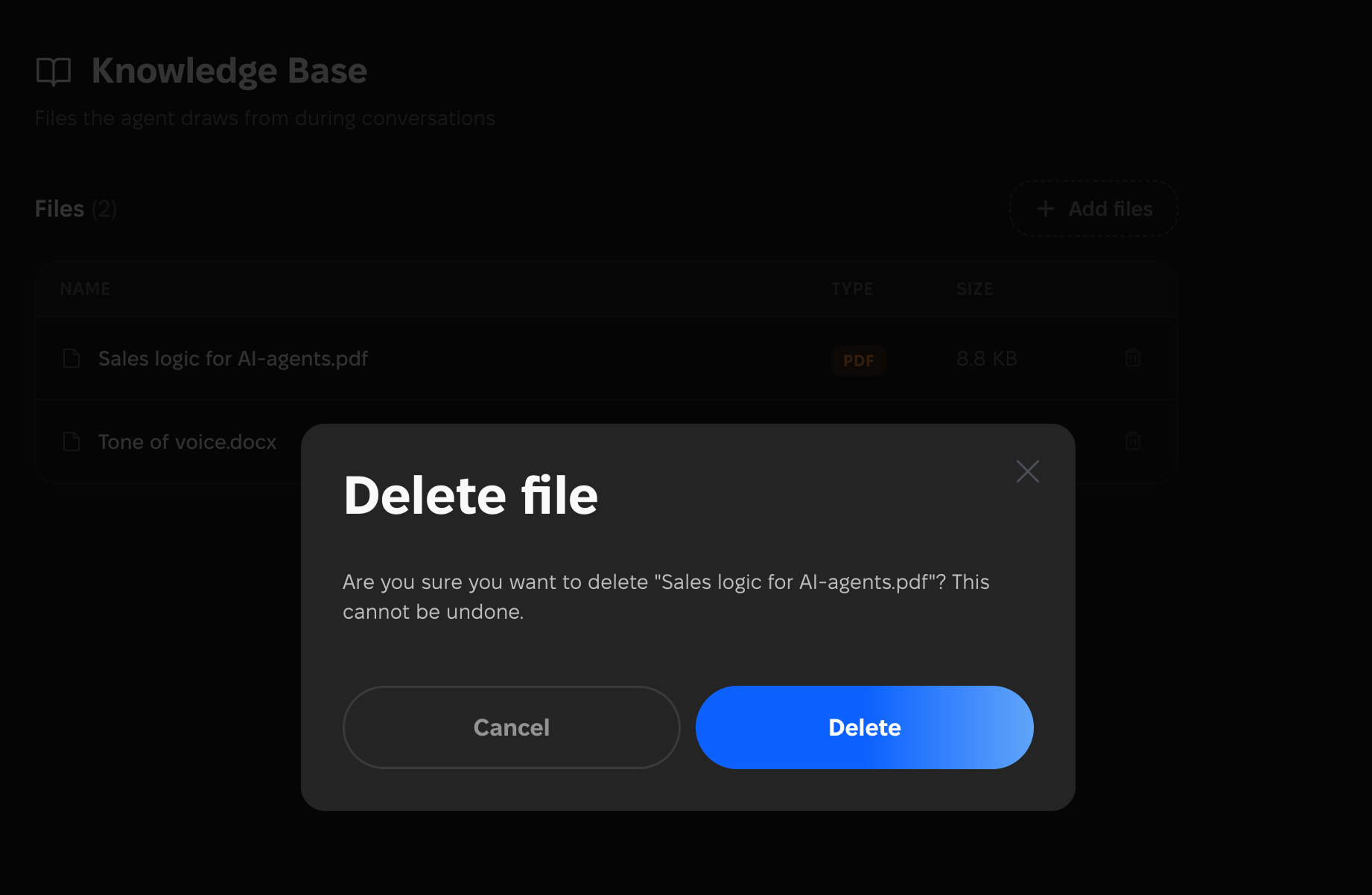
In **Knowledge Base**, find the file with outdated information and click the delete icon.
In the confirmation window, click **Delete**.
Click **Add files** and upload the updated document.
Deleting a file cannot be undone. If you delete a file by mistake, you will need to upload it again.
***
## How to update files
Currently, files cannot be edited directly in CostCare AI.
You also cannot rename a file after uploading it to the platform. If a document is no longer relevant or contains outdated information, you need to delete the old file first and then upload the updated version.
To update a file:
Make changes to the document outside CostCare AI and save the updated version with a clear file name.
In **Knowledge Base**, find the file with outdated information and click the delete icon.
In the confirmation window, click **Delete**.
Click **Add files** and upload the updated document.
Deleting a file cannot be undone. If you delete a file by mistake, you will need to upload it again.
 Before uploading a new or updated file, make sure that:
* the file has a clear and understandable name;
* the information inside the file is up to date;
* important content is provided as text;
* the file does not contain outdated information;
* there are no duplicate or conflicting versions.
***
## Best practices
To help your AI agents use the Knowledge Base effectively:
* upload only relevant and up-to-date files;
* use clear file names;
* keep one source of truth for each topic;
* remove outdated versions;
* avoid files where key information is stored only in images;
* add materials that reflect your current sales process, pricing, and communication style.
The better your Knowledge Base is structured, the easier it is for AI agents to provide accurate, useful, and sales-focused answers.
Before uploading a new or updated file, make sure that:
* the file has a clear and understandable name;
* the information inside the file is up to date;
* important content is provided as text;
* the file does not contain outdated information;
* there are no duplicate or conflicting versions.
***
## Best practices
To help your AI agents use the Knowledge Base effectively:
* upload only relevant and up-to-date files;
* use clear file names;
* keep one source of truth for each topic;
* remove outdated versions;
* avoid files where key information is stored only in images;
* add materials that reflect your current sales process, pricing, and communication style.
The better your Knowledge Base is structured, the easier it is for AI agents to provide accurate, useful, and sales-focused answers.