
KeyCRM with CostCare AI
Connect KeyCRM with CostCare AI to automate lead processing with AI agents and keep your KeyCRM pipeline updated. With this integration, CostCare AI can receive signals from KeyCRM when a lead moves to a specific pipeline stage. This signal starts the AI-agent workflow. If the AI agent needs help from a real manager, CostCare AI can move the lead card in KeyCRM to a dedicated manager stage.How the integration works
The integration works with KeyCRM pipeline stages and webhook events. There are two main flows:KeyCRM to CostCare AI
CostCare AI to KeyCRM
Lead processing flow
Lead is created or updated in KeyCRM
Lead moves to the AI-processing stage
KeyCRM sends a webhook to CostCare AI
AI agent starts processing
AI agent continues or escalates
Lead is moved to the manager stage in KeyCRM
Before you start
Before connecting KeyCRM to CostCare AI, make sure you have:Access to CostCare AI
Access to KeyCRM
KeyCRM API key
AI-processing stage
Manager escalation stage
Recommended KeyCRM pipeline setup
Before configuring the AI agent, prepare the required stages in your KeyCRM pipeline. For example, your pipeline may include:- New lead — the lead has just entered the pipeline.
- AI processing — the stage that triggers CostCare AI to start the AI-agent workflow.
- Manager work — the stage where the lead is moved if the AI agent escalates the conversation to a real manager.
- Qualified — the lead has been successfully qualified.
- Closed — the lead has been completed or rejected.
Connect KeyCRM to CostCare AI
1. Open Integrations in CostCare AI
In your CostCare AI account, go to Integrations. Select KeyCRM from the list of available integrations. Click Connect.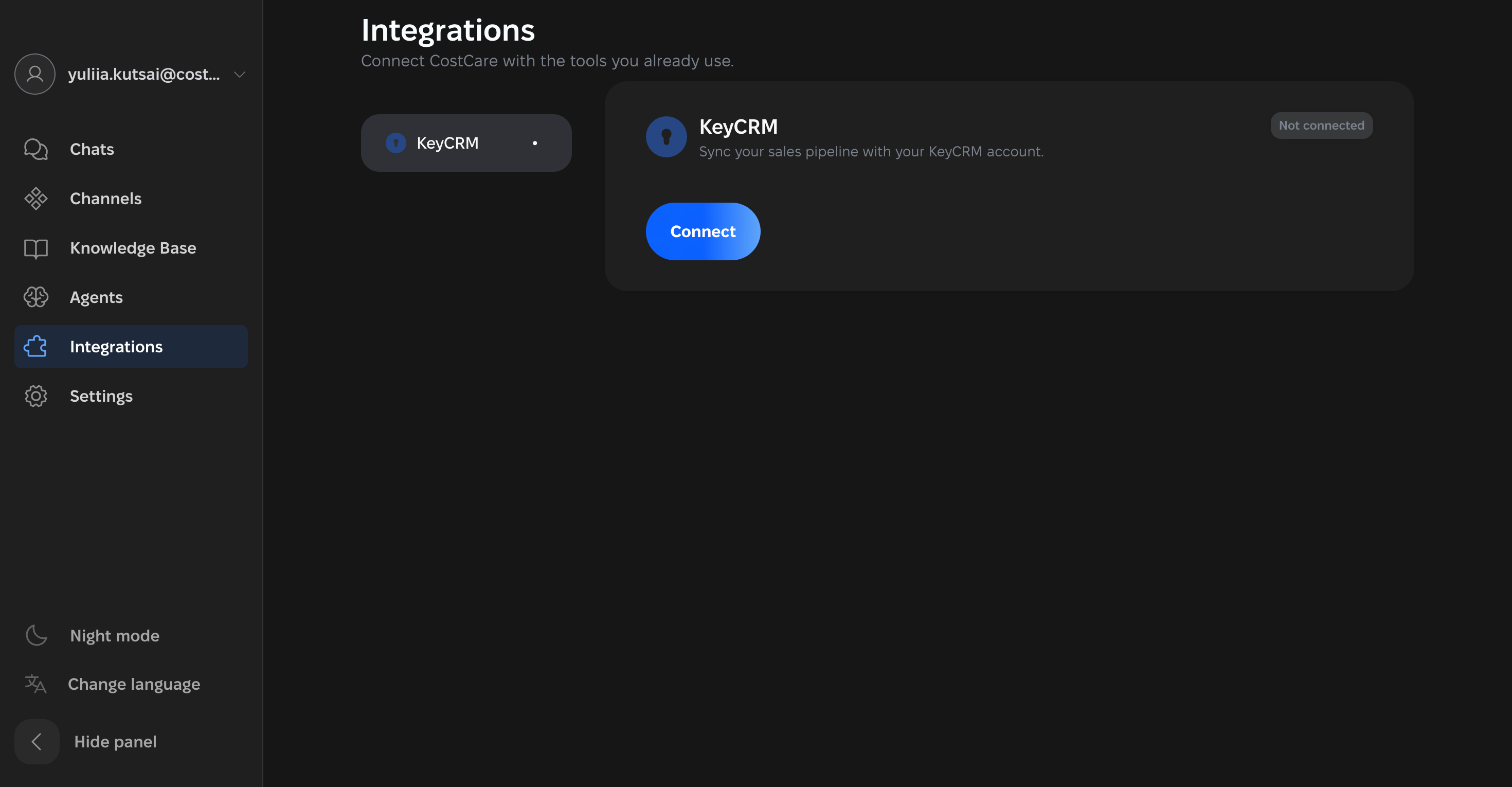
2. Add your KeyCRM API key
Paste your KeyCRM API key into the connection window. Then click Continue.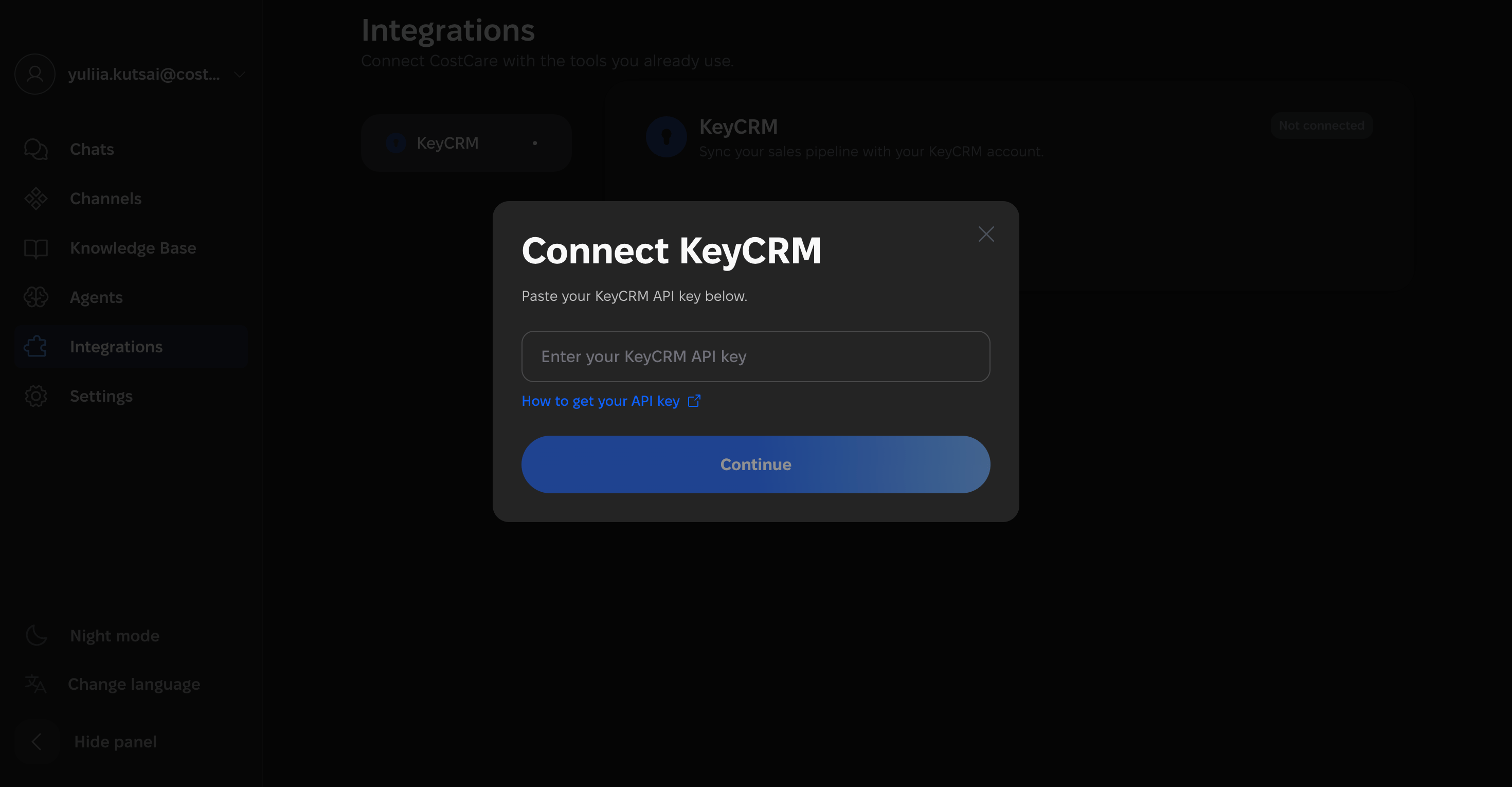
3. Copy the webhook URL
After the API key is added, CostCare AI will generate a webhook URL. Copy this webhook URL. You will need to add it to KeyCRM.4. Add the webhook in KeyCRM
In KeyCRM, create a webhook that triggers when a lead moves to the stage where the AI agent should start processing. Paste the webhook URL copied from CostCare AI into the webhook settings in KeyCRM.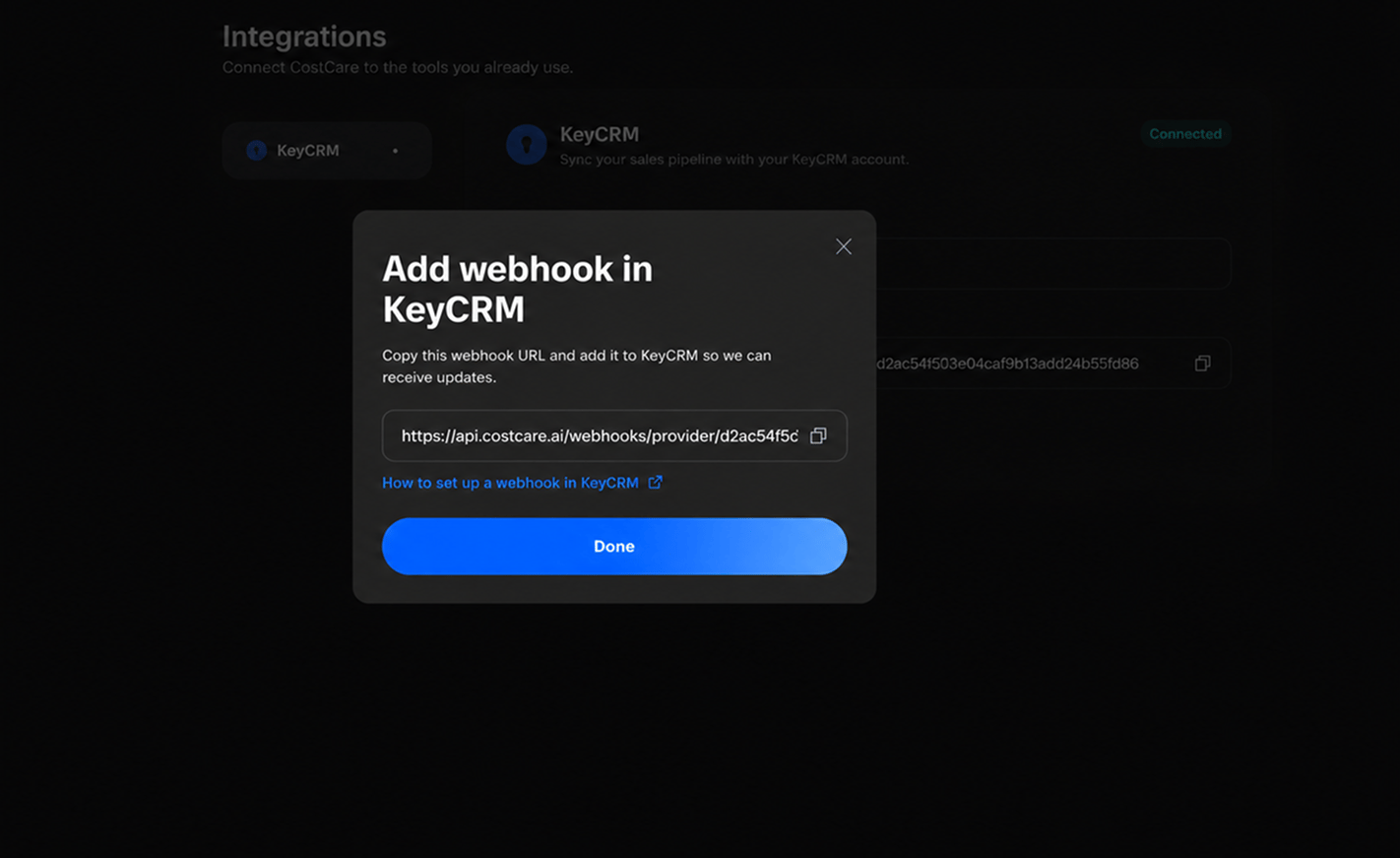
5. Finish the connection
After adding the webhook in KeyCRM, return to CostCare AI and click Done. Once completed, the integration status will change to Connected.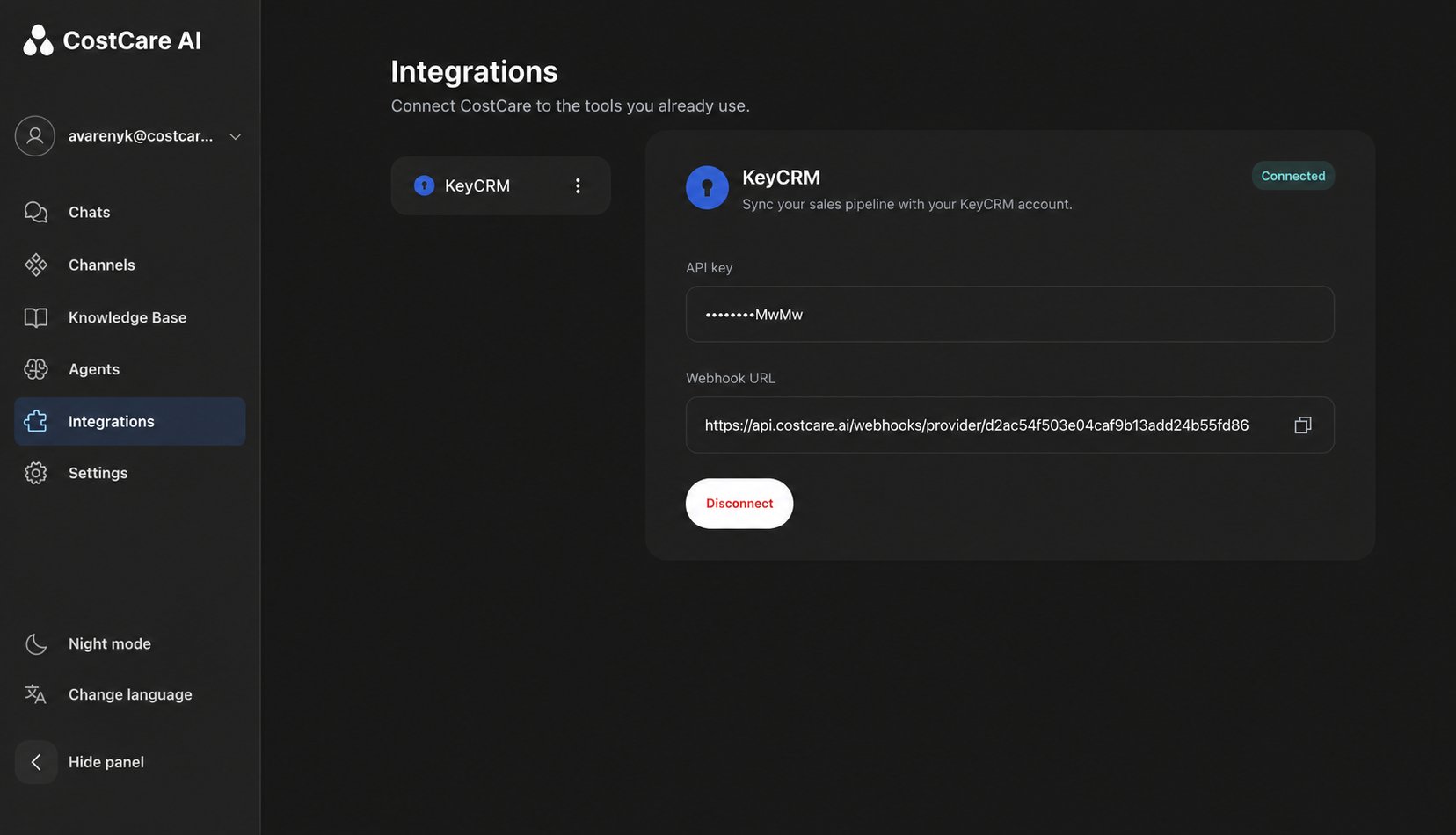
Configure AI-agent escalation
After the KeyCRM integration is connected, you can configure the AI agent to escalate leads to a real manager. This behavior is configured in the AI-agent prompt. For example, you can instruct the AI agent to escalate the lead when:- the customer asks a question the AI agent cannot answer;
- the AI agent does not have enough information to continue;
- the customer requests to speak with a real person;
- the conversation requires manual review;
- the lead is ready for a manager to continue the sales process.
Example AI-agent prompt instruction
You can add this instruction to the AI-agent prompt:What happens after connection
After the integration is connected, CostCare AI listens for webhook events from KeyCRM. When a lead moves to the defined AI-processing stage, CostCare AI receives the signal and starts the AI-agent workflow. If the AI agent continues the conversation successfully, the workflow follows the configured scenario. If the AI agent escalates the lead to a manager, CostCare AI updates the lead card in KeyCRM and moves it to the manager escalation stage.What data is sent to CostCare AI
Depending on your KeyCRM setup and webhook configuration, CostCare AI may receive:- lead details;
- contact information;
- pipeline information;
- current lead stage;
- order or request details;
- custom fields used in your sales process.
Important behavior
AI starts from a stage
CostCare AI listens to webhooks
Escalation moves the lead
Stage must exist first
Agent logic is prompt-based
No separate chat card in KeyCRM
Test the integration
To check whether the integration works correctly:Create or choose a test lead in KeyCRM
Move the lead to the AI-processing stage
Check the webhook event
Check CostCare AI
Test escalation
Check the lead stage in KeyCRM
Troubleshooting
If the lead was not passed to CostCare AI or was not moved to the correct stage, check the following:The webhook URL is incorrect
The webhook URL is incorrect
The API key is invalid or inactive
The API key is invalid or inactive
The wrong event is selected in KeyCRM
The wrong event is selected in KeyCRM
The lead moved to a different stage
The lead moved to a different stage
The manager stage does not exist in KeyCRM
The manager stage does not exist in KeyCRM
The stage name in the prompt is incorrect
The stage name in the prompt is incorrect
The escalation rule is missing from the AI-agent prompt
The escalation rule is missing from the AI-agent prompt
CostCare AI balance is low
CostCare AI balance is low
Disconnect KeyCRM
To disconnect KeyCRM from CostCare AI:Open Integrations
Select KeyCRM
Click Disconnect
FAQ
Does CostCare AI create a chat card in KeyCRM?
Does CostCare AI create a chat card in KeyCRM?
When does the AI agent start processing a lead?
When does the AI agent start processing a lead?
Can I choose which KeyCRM stage triggers the AI agent?
Can I choose which KeyCRM stage triggers the AI agent?
Can CostCare AI move a lead to another stage in KeyCRM?
Can CostCare AI move a lead to another stage in KeyCRM?
Where is escalation configured?
Where is escalation configured?
Do I need to create the manager stage before configuring the AI agent?
Do I need to create the manager stage before configuring the AI agent?
What should I do if the lead is not sent to CostCare AI?
What should I do if the lead is not sent to CostCare AI?
What should I do if the lead is not moved to the manager stage?
What should I do if the lead is not moved to the manager stage?