
Response delay
A delay gives customers time to send several short messages in a row. The agent waits after the user’s last message so it can process the messages together.- In Response delay, enter a value in Delay before responding.
- Set a value from 0 to 40 seconds. 0 means the agent responds without an additional delay.
- Click Save response delay.
Handling chats with history
Respond in chats with history determines whether the AI agent can handle chats that already contain previous messages, including conversations with returning customers.- Find Handling chats with history.
- Enable Respond in chats with history to allow these chats, or disable it to restrict the agent to new chats.
- Click Save in this section.
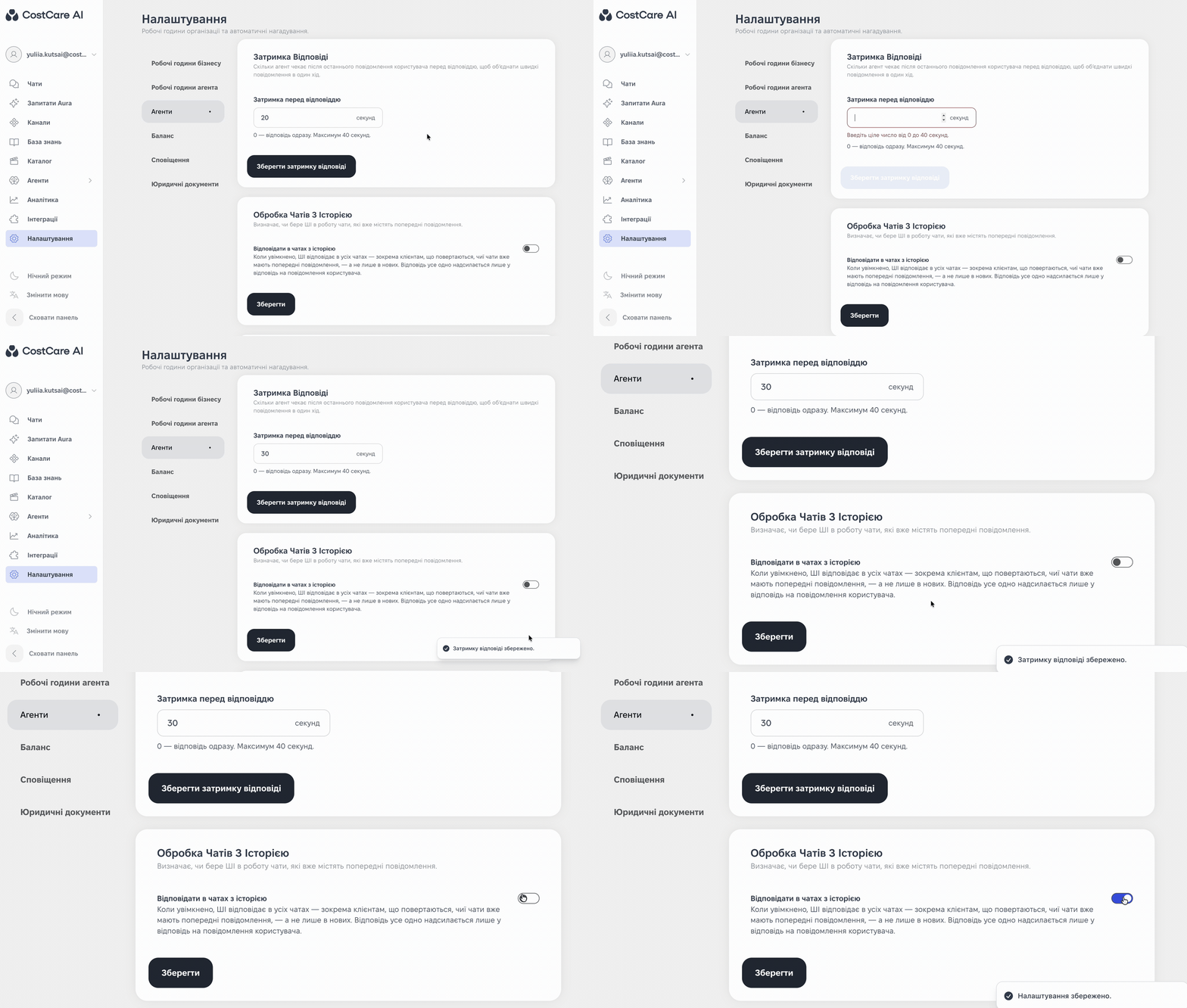
The illustration shows the Ukrainian interface.
Agent automation
The Agent automation section has two independent switches:- Enable the agent in new chats — the agent automatically joins new chats and starts responding without a manager’s involvement.
- Disable the agent after a manager’s message — the agent turns off in the chat as soon as a manager sends a message, and a person continues the conversation.
New conversation after a pause
This option treats the next message after a long break as the start of a new conversation.- In New conversation after a pause, enable Start a new conversation after a pause.
- In Pause duration, enter the number of days.
- Click Save in this section.
When this option is enabled, after the specified pause the agent sees only messages from the new conversation. Enable the agent in new chats treats this chat as new. Keep this in mind if you want the agent to resume work automatically after a break.
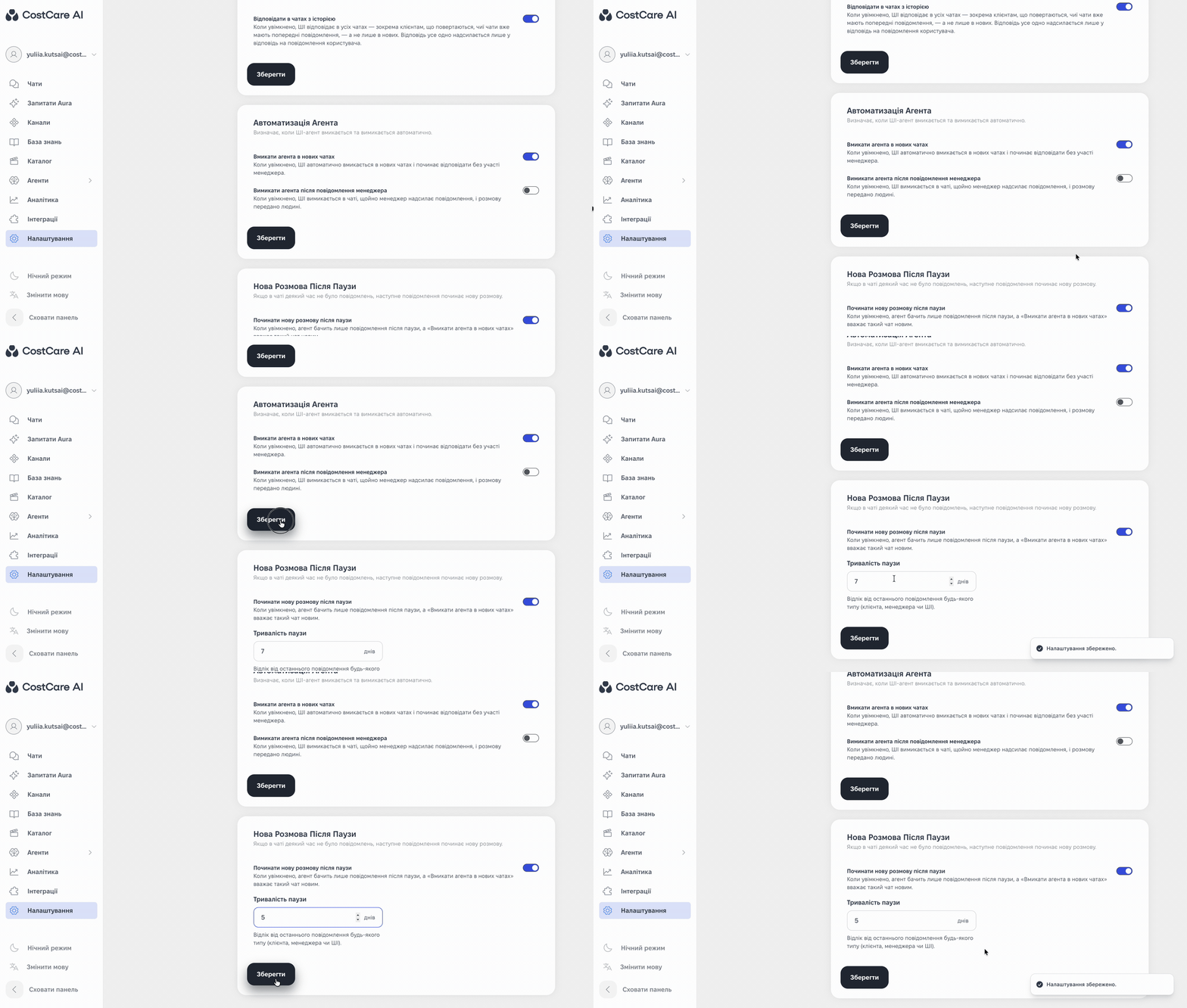
The illustration shows the Ukrainian interface.